
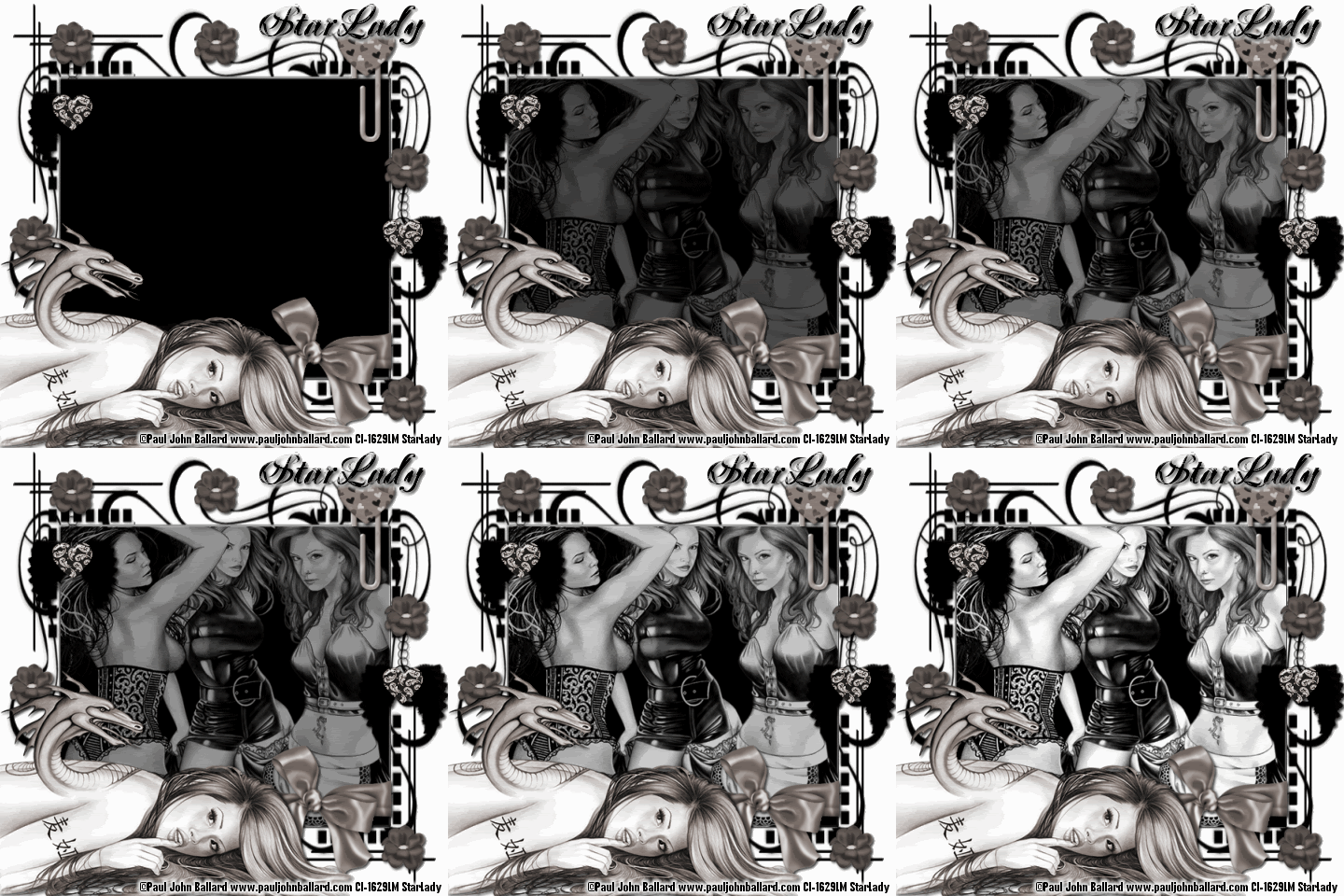
Click on tag to see full size
This tutorial is written for those with working knowledge of PSP.
I used PSP 9 for this tutorial, but it could be done with other versions I'm sure.
~Supplies you will need~
4 tubes of choice – I used the awesome work of Paul John Ballard. Please do not use his work without a license from C.I.L.M .
Mask 63 by Zuzzanna –You can get the Mask HERE about half way down the page. Thank you Zuzzanna!
Scrap Kit –Girly Crush “Freebie Add On” HERE at Candy’s Treat blog. Thank you!
Font of choice
~Okay Let’s get started~
Don’t forget to rename layers as you go
You might want to Adjust > Sharpen after you resize anything you need to.
Open and minimize mask in PSP
Open a 600 x 600 transparent image (we will resize later)
Flood Fill with white
New Raster Layer > Flood Fill with Black
Layers > New Mask Layer > From Image (Source Luminance & Invert Mask Data checked)
Layer Palette > Delete Mask Layer > Merge > Merge Group
Grab 3 tubes you would like to use > Copy and Paste As New Layers
Position & resize as you like over the “
Merge > Down all of the tubes > X-Out “3 Tubes” layer for now
Use your Rectangle Selection tool to select the “
Activate & un-X “3 Tubes layer” > Selections > Invert > Hit Delete on your keyboard
Selections > Select None
While still on the “3 Tubes” Layers -Adjust > Hue & Saturation > Colorize >
Copy & Paste “Wrapped Bow 2” from the scrap kit > Resize by 60 > Add a drop shadow
Position so that it looks like it “wraps” around the mask
Copy & Paste “Paper Clip 5” from the scrap kit > Resize by 60
Position as on my tag, use the Eraser to erase part of the paper clip to make it look “clipped” onto the mask- add a drop shadow
Copy & Paste “featherwingsCharm3” from the scrap kit > Resize by 60 –add a drop shadow
Duplicate and position as on my tag.
Copy & Paste “flower 14” as new layer > Add a drop shadow > Duplicate as many times as you like and position around the tag
Copy and Paste the 4th tube (main tube) as a new layer –at the top of the layer palette, resize if needed and position on your tag
X- out the white background, Mask, 3 background tubes, and the main tube
Merge > Merge Visible all of the “Elements” left on the tag
While still on the “Elements” Layer -Adjust > Hue & Saturation > Colorize >
Un-X all layers and repeat Colorize on the Main tube
From top to bottom in the layer palette you should have –Main Tube, Elements, 3 Tubes, Mask and White Background
Image > Resize –ALL by 80%
~Have Animation Shop open~
Activate the “3 Tubes” layer > Opacity to 0, Edit > Copy Merged in PSP, Right Click on workspace in AS > Paste as New Animation
Back to PSP - 3 Tubes Layer > Opacity to 20, Edit > Copy Merged in PSP, Right Click the on tag in AS > Paste > After Current Frame
Back to PSP - 3 Tubes Layer > Opacity to 30, Edit > Copy Merged in PSP, Right Click the on tag in AS > Paste > After Current Frame
Repeat – Increasing the Opacity by 10 each until you have pasted the last layer (opacity at 100) (total 10 frames)
In AS - Edit > Select All, Animation > Frame Properties change to 25, View Animation –the 3 tubes should fade in nicely.
Back to PSP- write out copyright credits, Edit > Copy, In AS Right Click on the workspace-Paste As New Animation, Edit > Copy-credits, Make sure to hit the Propagate Paste button in the tool bar, Right Click on your tag –Paste > Paste Into Selected Frame
Save the Blank as a GIF
Back to PSP- write out your name, Edit > Copy, In AS Right Click on the workspace- Paste As New Animation, Edit > Copy-name, Right Click on your tag –Paste > Paste Into Selected Frame
Save as a GIF.
DONE I hope you enjoyed this tut
If you have any problems please feel free to e-mail me at: starladystudio@bellsouth.net
HUGS StarLady


No comments:
Post a Comment