
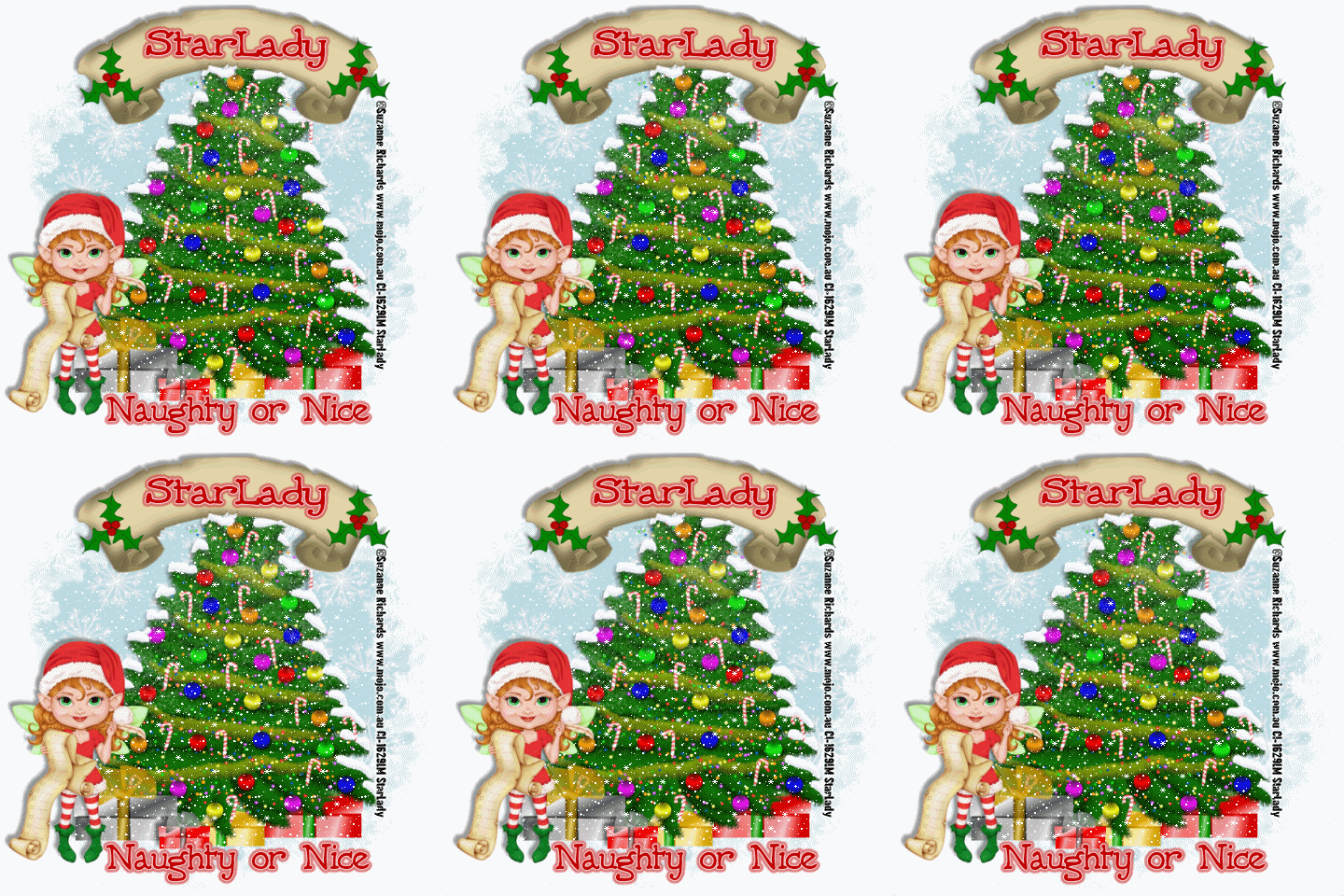
Click on tag to see full size
This tutorial is written for those with working knowledge of PSP.
I used PSP 9 for this tutorial, but it could be done with other versions I'm sure.
~Supplies you will need~
Supplies HERE
1 Tubes of choice – I used the awesome work of Suzanne Richards. Please do not use her work without a license from C.I.L.M .
Free “Christmas Around the World Kit” by Voodoo- Thanks darlin’!! (in zip)
Eye Candy 4000 > Gradient Glow (optional –used on my name)
Alien Skin Eye Candy Nature > Snow Drift
“Falling Snow” (in zip)
The Font I used is called "5th Grader Bold"
The Drop Shadow I used is V,H (-5),Opacity 40, Blur 5, Color -Black
~Okay Let’s get started~
Don’t forget to rename layers as you go
You might want to Adjust > Sharpen after you resize anything you need to.
Open a 600 x 600 transparent image (we will resize later)
Open the “tree deco’, copy and paste it on your tag, Resize it by 60%, add a drop shadow
Open your tube, copy and paste it on your tag, Resize it by 60%, add a drop shadow
On the “Christmas Tree” layer add Effects > Alien Skin Eye Candy Nature > Snow Drift > Large First Flakes
Add a New Raster Layer just above the “White Background”
Grab “paper 12” from the kit > Material Palette > Foreground > paper 12 > Angle 0, Scale 50 > Flood Fill the new layer
Open a Mask in PSP – Layers > New Mask Layer > From Image > Okay
Layer Palette > Delete Mask Layer > Merge Group
From the kit grab some presents > Copy and paste > resize each by at least 30% position along the bottom in front of the Christmas Tree –add a drop shadow to each as you go
Open “banner blank”, copy and paste it on your tag, Resize it by 80% DO NOT add a drop shadow yet.
Open the “Holly” –Copy and Paste > Resize by 80% -position on the right size of the banner > Image > Mirror – you may still need to position it on the left side of the banner
Layer Palette > Make sure both “Holly” layers are directly above the “Banner”
Activate the top “Holly” layer > Right click > Merge Down, again Right click > Merge Down (you should now have the banner and two pieces of holly on one layer- I renamed it “Banner” –Now add a drop shadow
Image > Resize ALL layers by 80%
Add all Copyright Credits
~Now for the Snow~
Open Animation Shop
Layer Palette > X out the tube and banner layer – Edit > Copy Merged
Paste as New Animation in AS
Open the “Falling Snow” in AS- Minimize it for now
Select your Tag –Edit > Duplicate Selected until you have 10 frames
Get your “Falling Snow”- Edit > Select All > Edit > Copy
Minimize the snow again
Make sure “Propagate Paste” is toggled on in the Tool Bar
Your Tag- Edit > Select All, Edit > Paste > Into Selected Frame
View > Animation (the snow should be falling lol)
Go back to PSP – Un-X your Tube –Edit > Copy
Paste as New Animation in AS > Edit > Copy
Your tag- Edit > Paste > Into Selected Frame
Go back to PSP – Un-X your Banner –Edit > Copy
Paste as New Animation in AS > Edit > Copy
Your tag- Edit > Paste > Into Selected Frame
View > Animation (make sure nothing is “jumping”)
SAVE AS a GIF (blank)
Add any other Text you would like
I used Eye Candy 4000 > Gradient Glow 2 times (Change Glow Width to 3) with White then Red
Save AS Again
DONE I hope you enjoyed this tut.
If you have any problems please feel free to e-mail me at: starladystudio@bellsouth.net
HUGS StarLady


No comments:
Post a Comment