

1
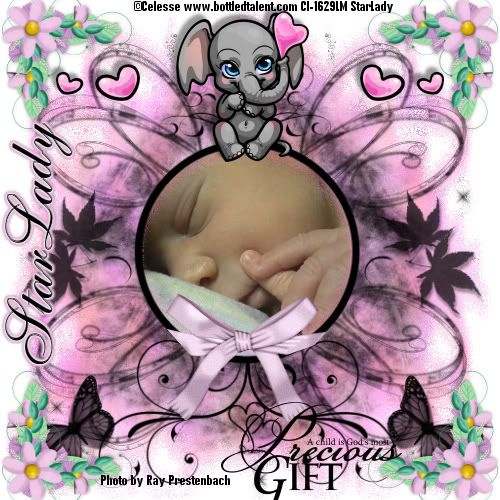
Click on tag to see full size
This tutorial is written for those with working knowledge of PSP.
I used PSP 9 for this tutorial, but it could be done with other versions I'm sure.
~Supplies you will need~
Supplies HERE
1 Tubes of choice – I used the awesome work of Celesse. Please do not use her work without a license from C.I.L.M .
Free “Waiting for Spring” scrap kit from Beacon Scrap HERE Thanks darlin’!
Word Art and the Cajun Designz template in zip
If anyone knows where Cajun Designz’s website is please let me know.
Eye Candy 4000 > Gradient Glow x 2 (optional –used on my name)
The Drop Shadow I used is V,H (-5),Opacity 40, Blur 5, Color –Black
Font I used is called Allegro
~Okay Let’s get started~
Don’t forget to rename layers as you go
You might want to Adjust > Sharpen after you resize anything you need to.
Grab the “Dreams Temp” template (we will use this instead of a blank canvas) –Resize by 50%.
Add a “New Raster” layer, flood fill white –Rename “white BG,” and move below the template layer
Grab a photo of choice. I used a picture of my daughter.
Copy and Paste it as a new layer, move the photo between the template and the white background and resize it to fit a section of the photo in the “circle” part of the template.
X out the photo.
With the Magic Wand select inside the circle. Selections > Modify > Expand by 2
Un-X the photo. Selections > Invert and hit Delete on your keyboard
Duplicate the template layer
With a color, gradient or pattern of choice flood fill the original template layer and lower the Opacity
Effects > Eye Candy 4000 > HSB Noise, Effects > Toadies > Blast n’ Blur
For some reason I had to use the “Deform” to close the “circle” part of the “copy of the template” back around the picture
On the Photo layer- Adjust >
Grab a tube –copy, paste as a new layer, position where you like and add a drop shadow
Grab your choice of Word Art- Copy, paste as a new layer and position as you like
Grab the “Floral Corner 01” in the “Waiting For Spring” scrap kit
Copy, paste as a new layer, resize by 50% about 3 times and place in the top left corner-add a drop shadow
Layers > Duplicate
Image > Mirror
Layers > Duplicate
Image > Flip
Layers > Duplicate
Image > Mirror -You should now have 4 floral corners
Now grab the “Buckled Ribbon” from the scrap kit
Copy, paste as a new layer, resize by 50% about 3 times –I did NOT put a drop shadow
Use the Freehand Selection Tool-point to point to select the parts of the ribbon you want to cut off to make it look as if the ribbon wraps around the circle, hit Delete on your keyboard (I had to redo this a few times to get it how I wanted it)
Add all Copyright Credits
File > Save As (Blank without a name ect)
Go back and add the text you want
File > Save As again
DONE I hope you enjoyed this tut.
If you have any problems please feel free to e-mail me at: starladystudio@bellsouth.net
I would LOVE to see what you have created!
HUGS StarLady


No comments:
Post a Comment