
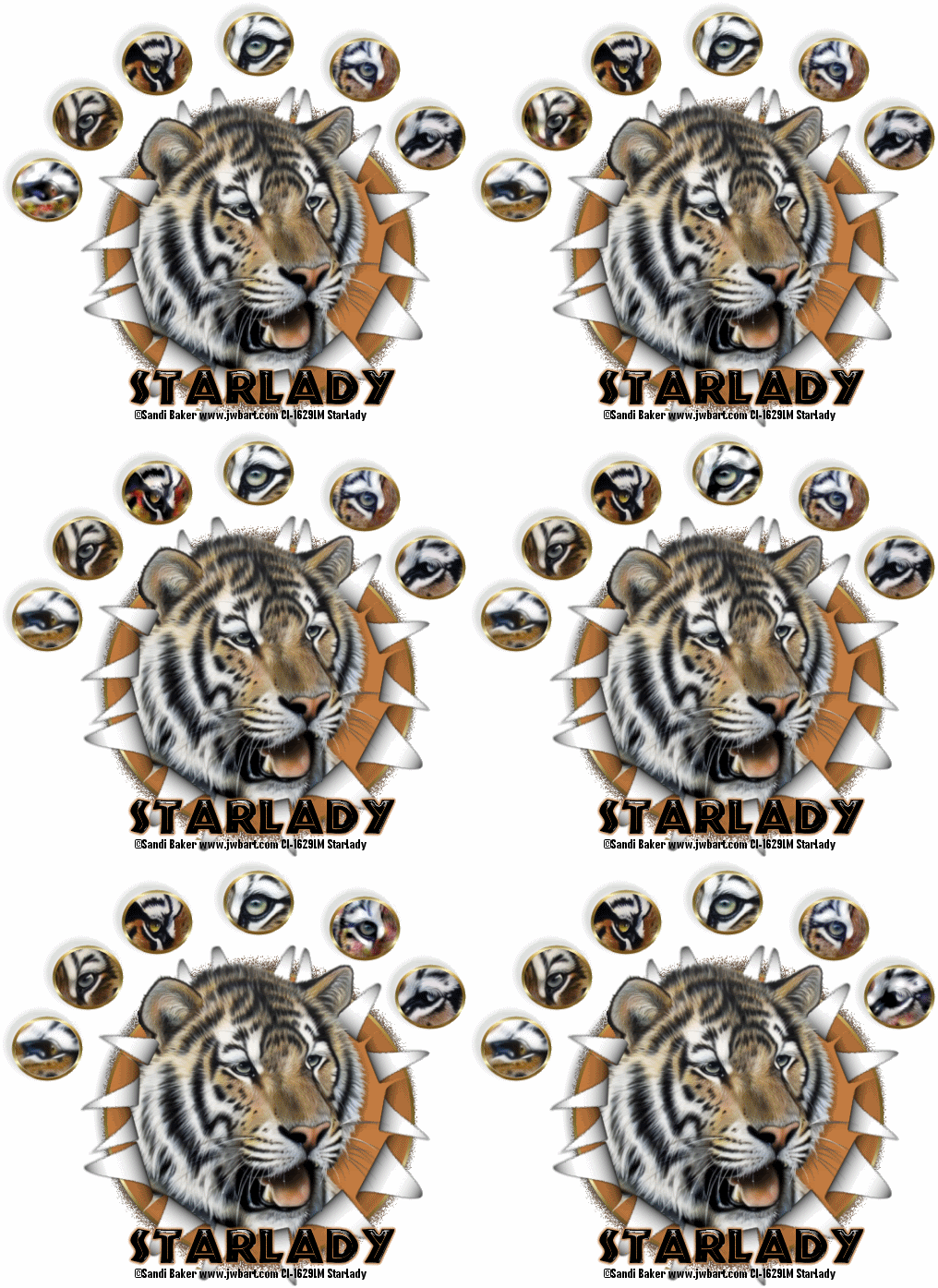
Click on tag to see full size
This tutorial is written for those with working knowledge of PSP.
I used PSP 9 for this tutorial, but it could be done with other versions I'm sure.
~Supplies you will need~
~1-7 Tubes of choice – I used the awesome work of Sandi Baker. Please do not use her artwork without a license from C.I.L.M .
~Plugin: Toadies > Blast ‘n Blur
~Plugin: Eye Candy 4000 > HSB Noise
~Plugin: Eye Candy 4000 > Gradient Glow (optional –used on my name)
~The Drop Shadow I used is V,H (-5),Opacity 40, Blur 5, Color –Black
~Font I used is called ‘African’
~Okay, Let's get stated~
Don’t forget to rename layers as you go
You might want to Adjust > Sharpen after you resize anything you need to.
1) Basics
Open a 600 x 600 transparent image (resize later) and flood fill White
Grab the Ellipse Tool –Line Width: 4
Material Palette – Foreground: gradient of choice (I used “Metal Brass”) Background: Null
Draw out a big circle, then go to Objects > Align > Center in Canvas, Convert to a Raster
Use the same settings to draw out a small circle (leave the small circle for now)
2) Let’s work on the ‘Big Circle”
Grab a tube to use in the big circle, Windows > Duplicate and close the original
Make a Raster Layer
With the Magic Wand click inside the circle
Go to Selections > Modify > Expand by 2
Flood fill with a light color from your tube, move the ‘Big Colored Circle’ below the ‘Big Circle’
Put the Drop Shadow on the ‘Big Circle
With the Magic Wand click inside the ‘big circle’ again
Go to Selections > Modify > Expand by 2
Copy, paste and position your tube where you like,
Duplicate the tube, X out the original tube (leave for now)
On the ‘Copy of Big Tube’ layer–
Selections > Invert and hit ‘Delete’ on your keyboard, Selections > Select None
Move the ‘Copy of Big Tube’ below the ‘Big Circle’
Duplicate the “Big Colored Circle’ and move the copy below it
On the ‘Copy of Big Colored Circle’ use the plugin called: Toadies >Blast ‘n’ Blur
Duplicate the ‘Blast ‘n’ Blurred Circle –Merge > Merge Down
Duplicate the ‘Big Colored Circle’ again
Move it below the ‘Big Circle’ –Merge > Merge Down
Use the plugin: Alien Skin Xenoflex 2 > Rip Open
Layer Palette –from Top to Bottom you should have:
~Small Circle
~Big Tube
~Big (Ripped Open) Circle
~Copy of Big Tube
~Big Colored Circle
~Blasted Color Circle
~Background
Grab your Eraser and erase all parts you do not want sticking out of the ‘Big (Ripped Open) Circle’
3)Now let’s work on the small circle(s)
Position the small circle where you want
Duplicate the ‘Small Circle’ 5 times (total 6)
For the sake of less confusion rename each circle- (start with original) ‘S Circle 1’… 2, 3, 4, 5, 6
~~With the Magic Wand click inside ‘S Circle 1’
Go to Selections > Modify > Expand by 2
Grab a new tube~ Windows > Duplicate –close out the original
**(I used just eyes, so I skipped making a New Raster Layer…but you may need to)
New Raster Layer, Flood fill with a color from the new tube you will use
Position the tube where you want –
Selections > Invert and hit ‘Delete’ on your keyboard, Selections > Select None
Move below all small circle layers
~~~Repeat the above for all 6 of the ‘S Circle(s)’
Add the Drop shadow to all the ‘S Circles
Here where you should add any embellishments to the tag if you wish (go wild lol)
X out white Background
Grab the Crop Tool > hit ‘ Merge Opaque’ at the end of all the crop settings
Double click inside the square and everything is cropped perfectly
Un-X Background
Resized Entire tag if need be then add all Copyright Credits
4) Animation
Launch Animation Shop “AS”
Go back to PSP click on the first tube in ‘S Circle 1’
Go to –Effects > Eye Candy 4000 > HSB Noise > click OK
Edit > Copy Merged – Go to AS, Paste As New Animation
Go back to PSP –Edit > Undo HSB Noise
Go to –Effects > Eye Candy 4000 > HSB Noise > hit Random Seed > Click OK
Edit > Copy Merged – Go to AS, Paste > After Current Frame
Go back to PSP –Edit > Undo HSB Noise
Go to –Effects > Eye Candy 4000 > HSB Noise > hit Random Seed > Click OK
Edit > Copy Merged – Go to AS, Paste > After Current Frame
Edit > Undo HSB Noise
Go to the next tube layer
Repeat the above until you have done a total of 3 layers of HSB Noise on all of the tube layers
You should have a total of 18 Frames for your tag in AS when you finished.
In AS – Edit > Select All, Animation > Frame Properties 25, View > Animation
If all is going well you may want to save this as a blank
Then go back to PSP –type out the text you want on the tag.
Edit > Copy
In AS- Paste as New Animation
Edit > Select All, hit Propagate Paste , Paste > Into Selected Frames, View > Animation
If all is well. Save again. DONE. I hope you enjoyed this tut!


No comments:
Post a Comment